How to set up deep chart on your PC
1. Go to your Quantum X dashboard, click on 'credentials'.
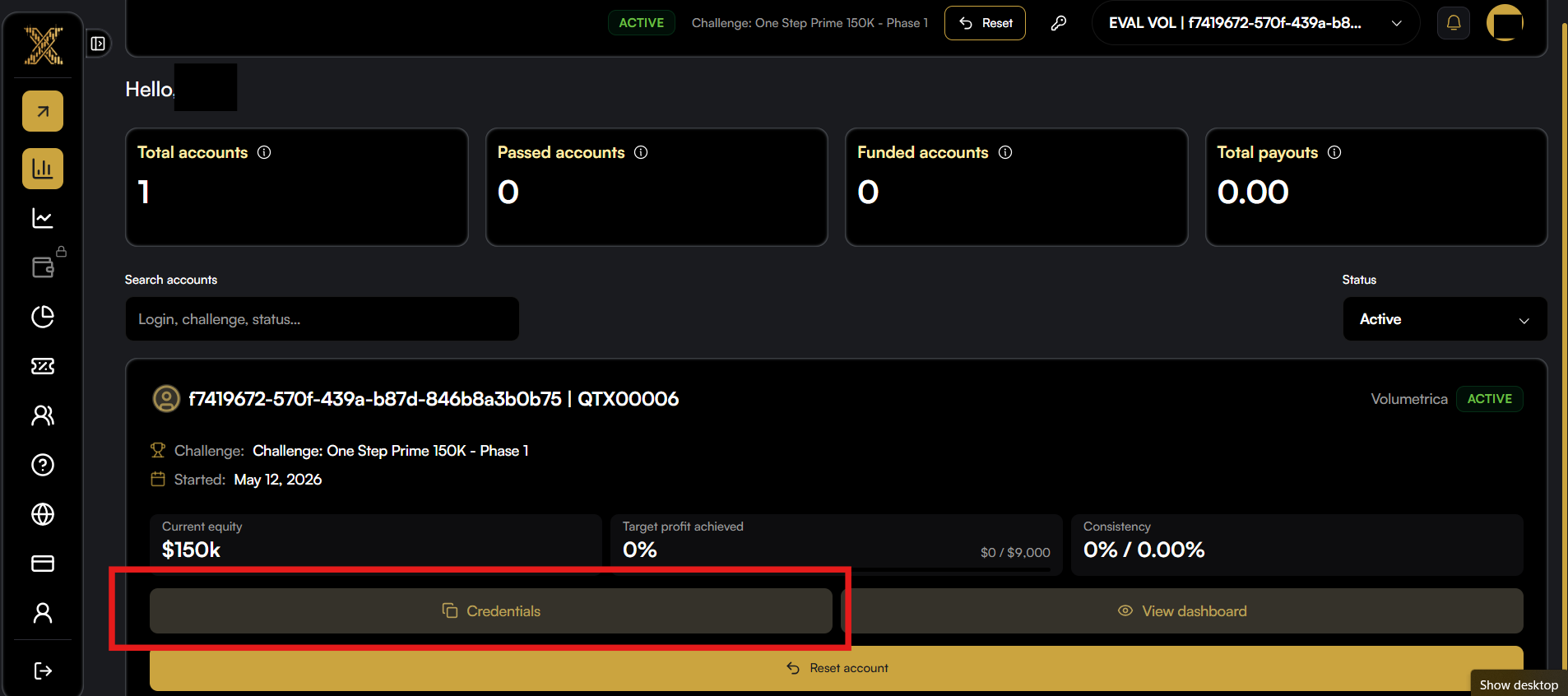
2. Here are the details that you will need to log into Volumetrica/Deepchart.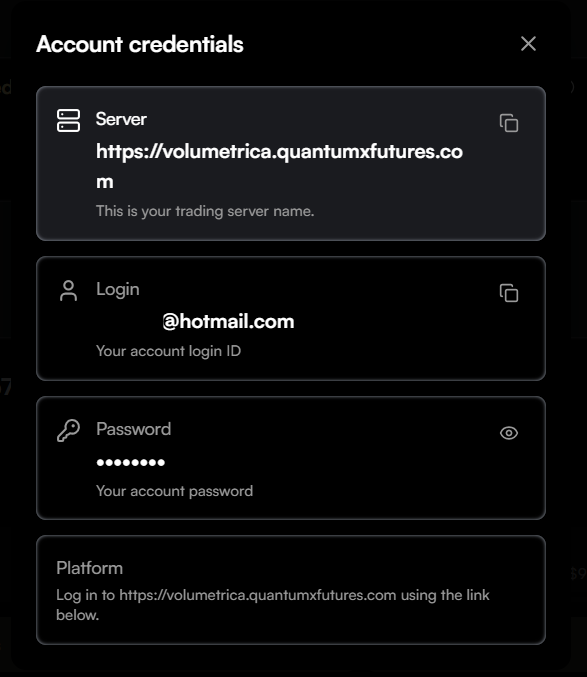
3. Go to https://volumetrica.quantumxfutures.com and put in your log in credentials that you just got from the Quantum X Dashboard.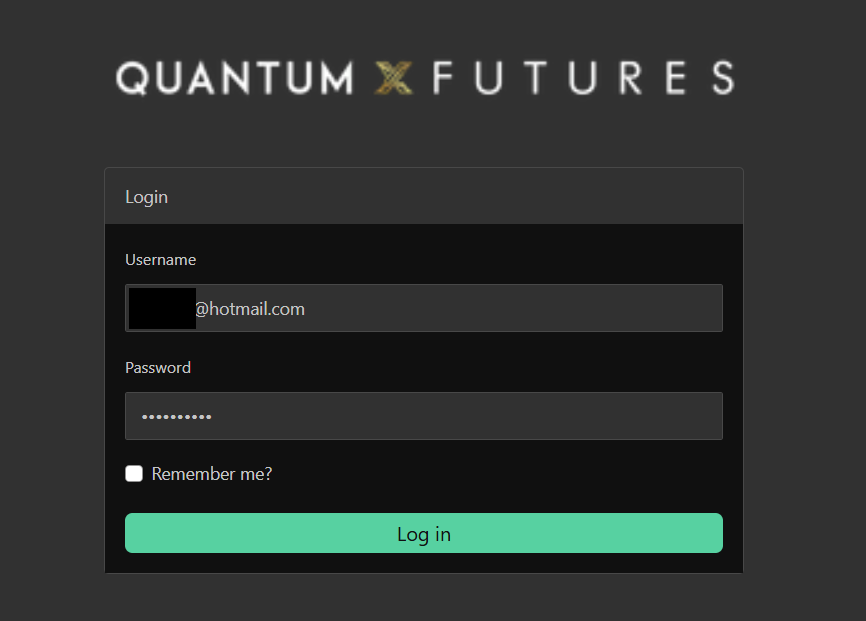
4. Click on download platform on the left. (You can also choose to trade on deepchart web if you prefer)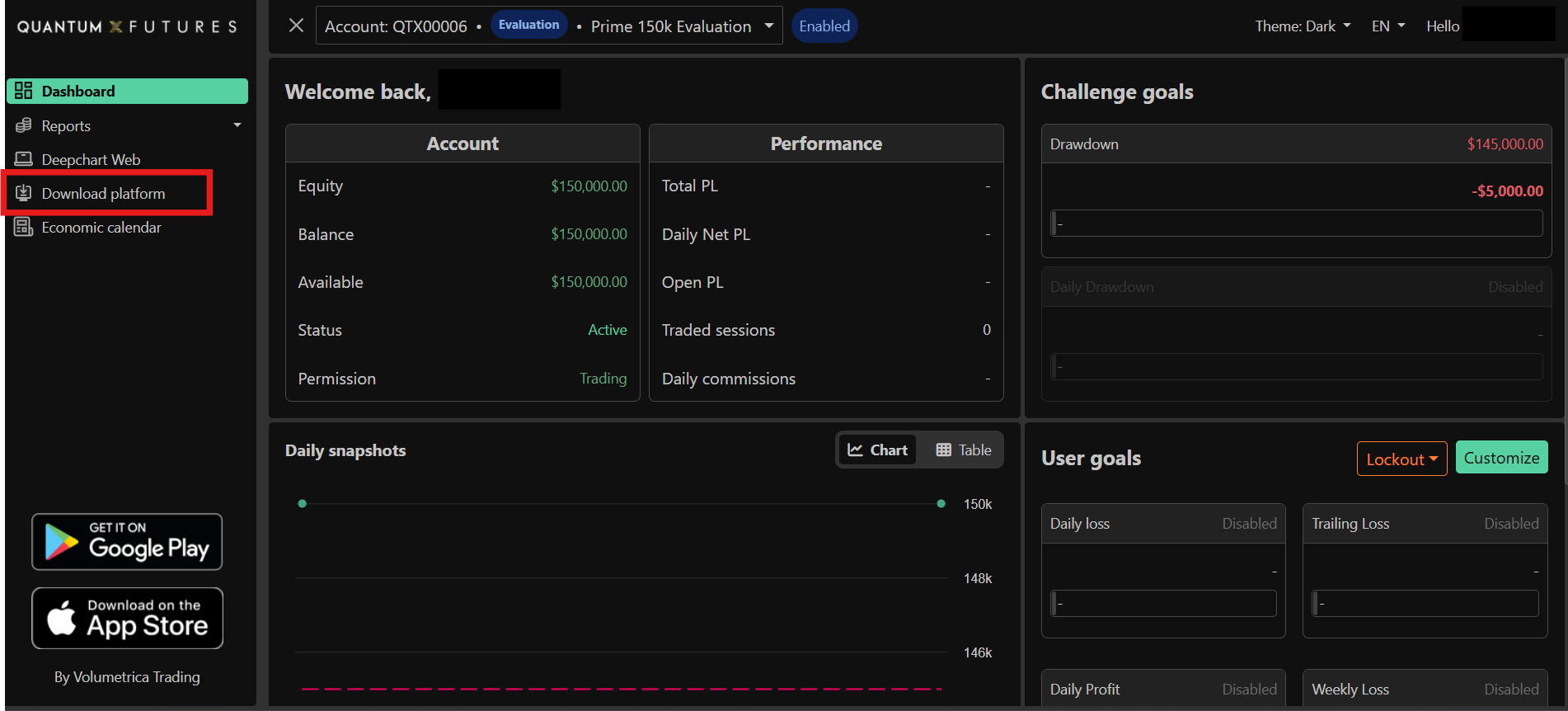
5. Click on download and note down your license number.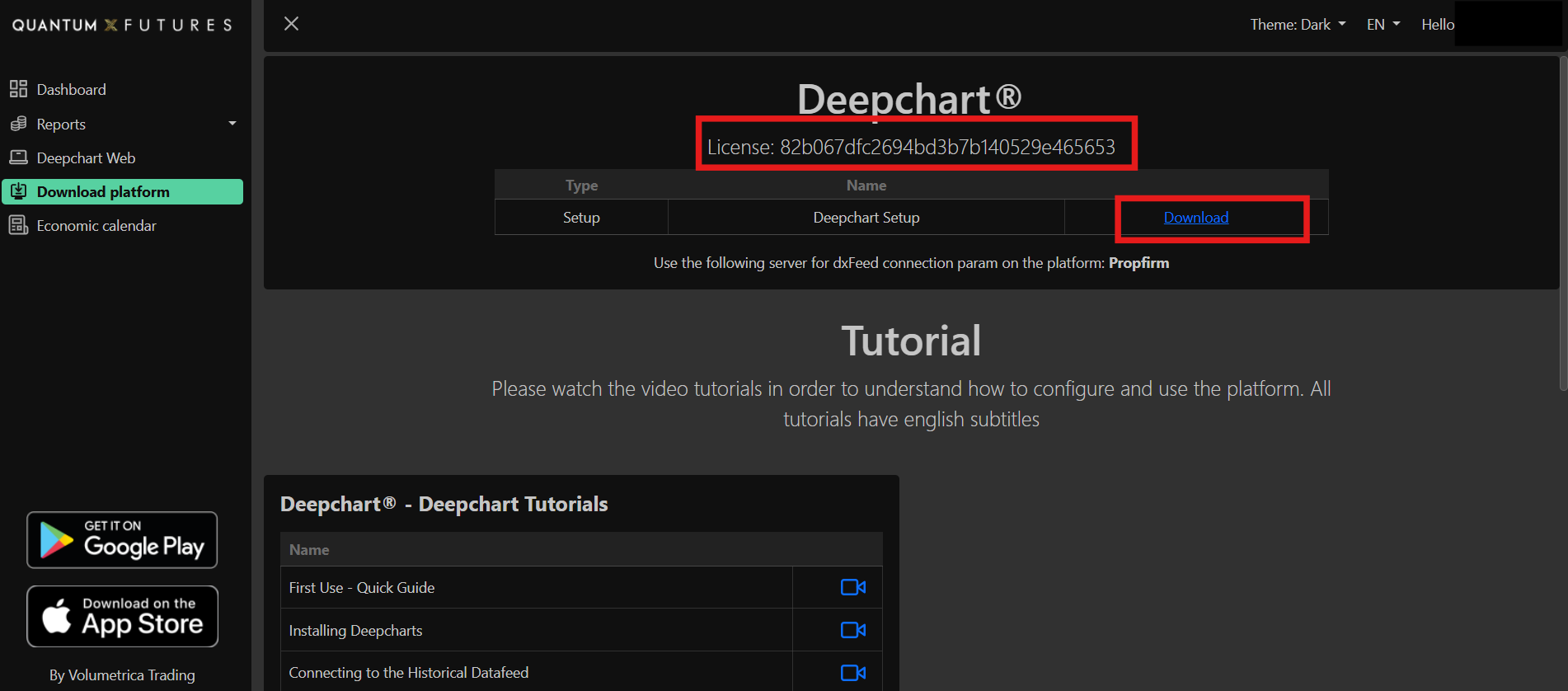
6. Go through the setup process.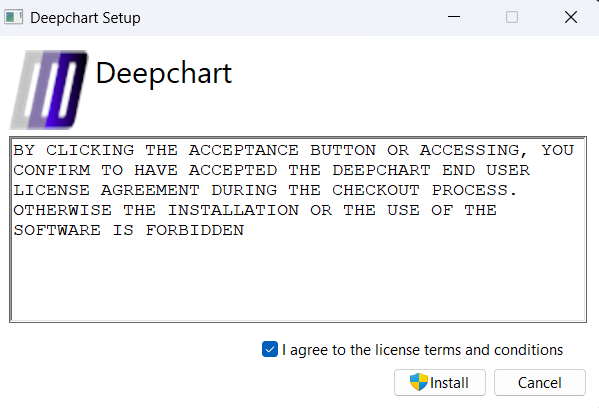
7. When you open deep chart it will ask you for your Quantum X email and the license in step 5. Fill those in and click log in.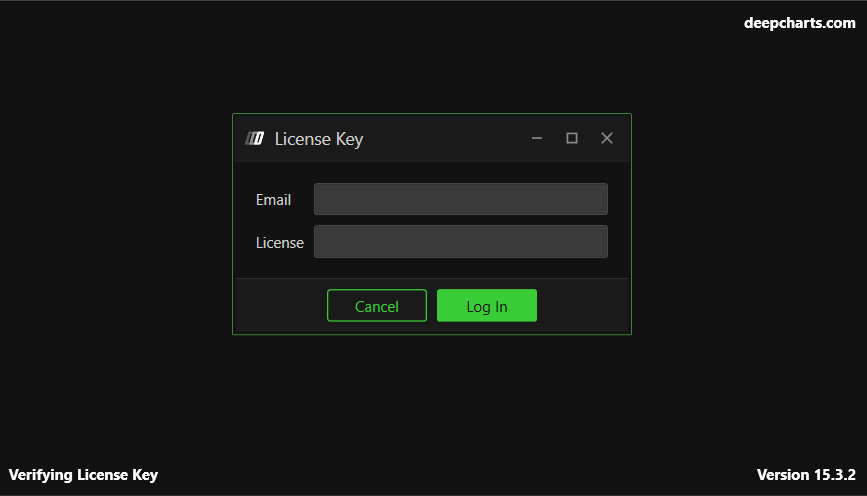
8. Click I have a datafeed I want to configure and click next.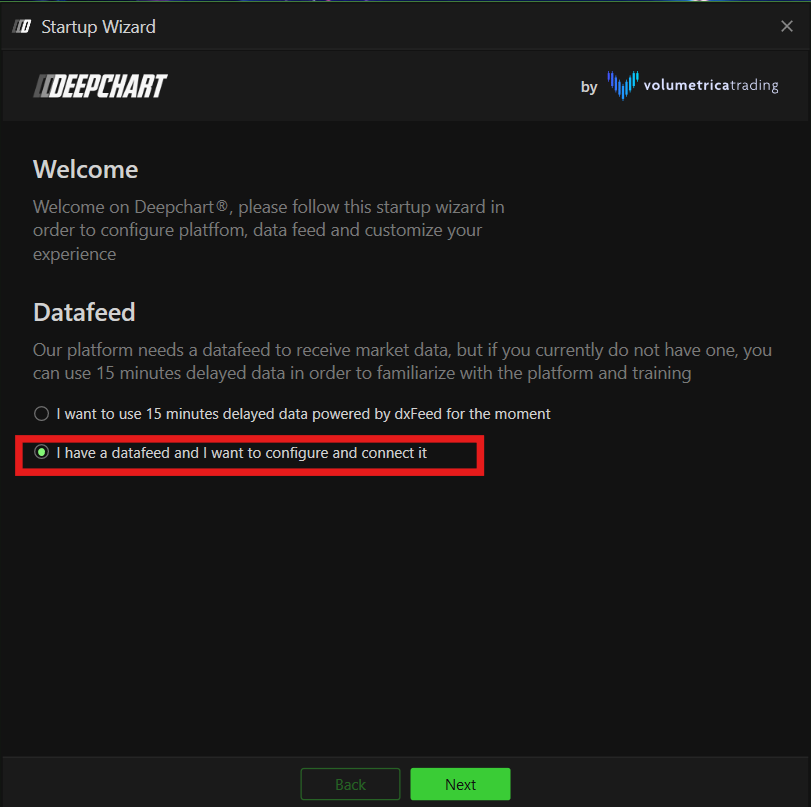
9. Fill out the details. Your username and password can be found in your QX dashboard. (Note: Make sure there is no spaces when you are copying and pasting them.) then click next.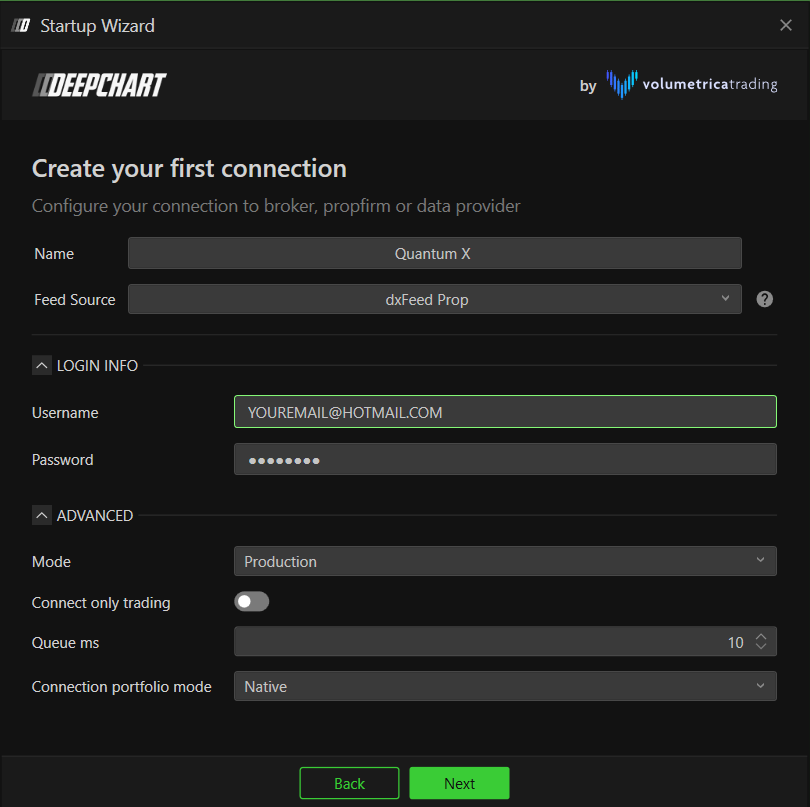
10. Click next. 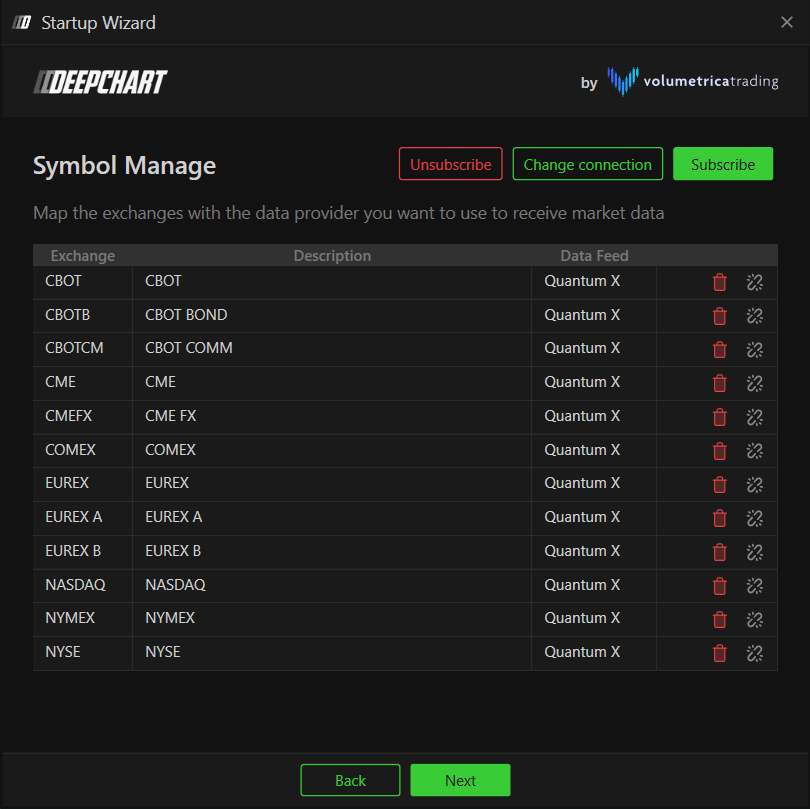
11. Click on select a connection and click the one you just configured.
12. If everything is correct you should get a green connection like this.

Setting up your chart to trade
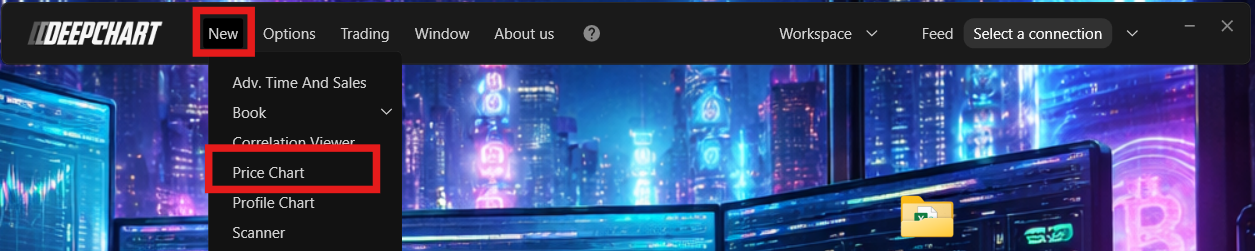
1. Click 'new' then 'Price chart'
2. Choose the asset you want to trade/view the charts off. For example CME > NQ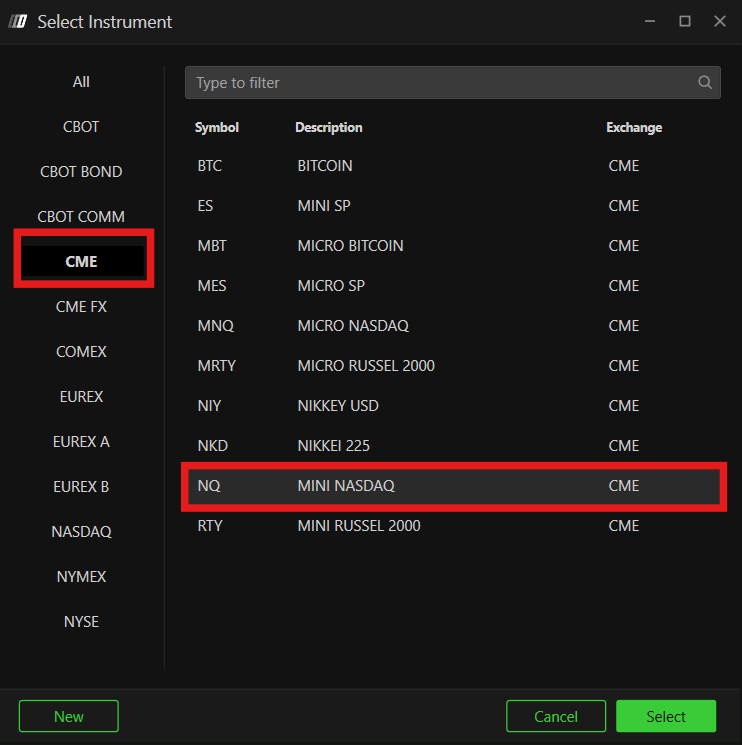
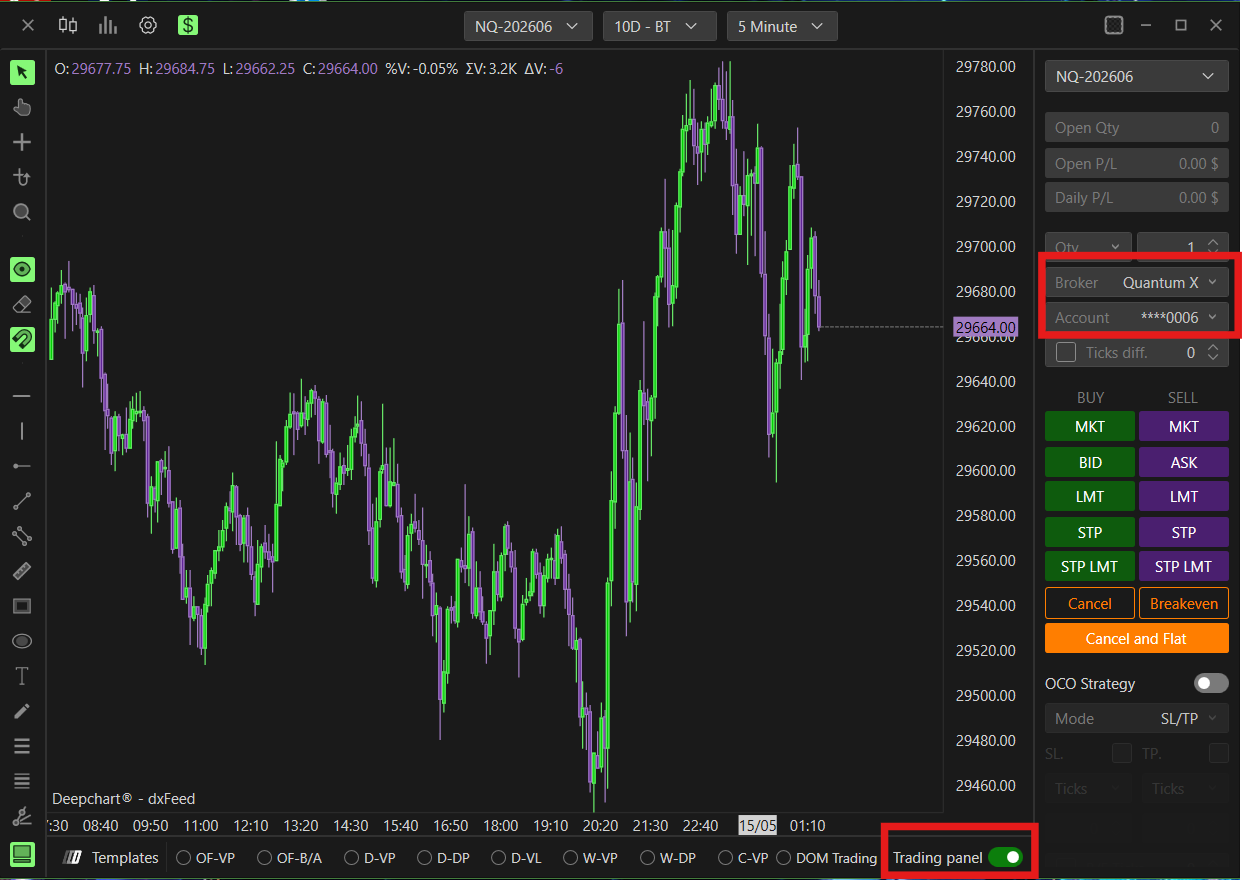
3. Toggle Trading Panel and make sure you selected the broker as quantum and you chose your account to trade with. (If you dont select these the standard will be a sim account)
Troubleshooting:
If you do not get a green connection go to feed settings and try setting it up again making sure that email and password is exactly as it is in the credentials section in your https://app.quantumxfutures.com/dashboard
Was this article helpful?
That’s Great!
Thank you for your feedback
Sorry! We couldn't be helpful
Thank you for your feedback
Feedback sent
We appreciate your effort and will try to fix the article